Questionnaires let you collect the details you need after a booking is secured, like event timelines, song requests, or dietary restrictions. You build each questionnaire once as a template and tie it to the packages it applies to. From then on, every new booking that includes a matching package automatically gets its own copy, so the right questions are waiting on the booking without you setting them up each time.
A template's settings are the defaults for those copies: who can see it, who can fill it out, and when it appears. This article walks through those settings. If you are new to questionnaires, start with How do I use questionnaires to collect event details? for the bigger picture.
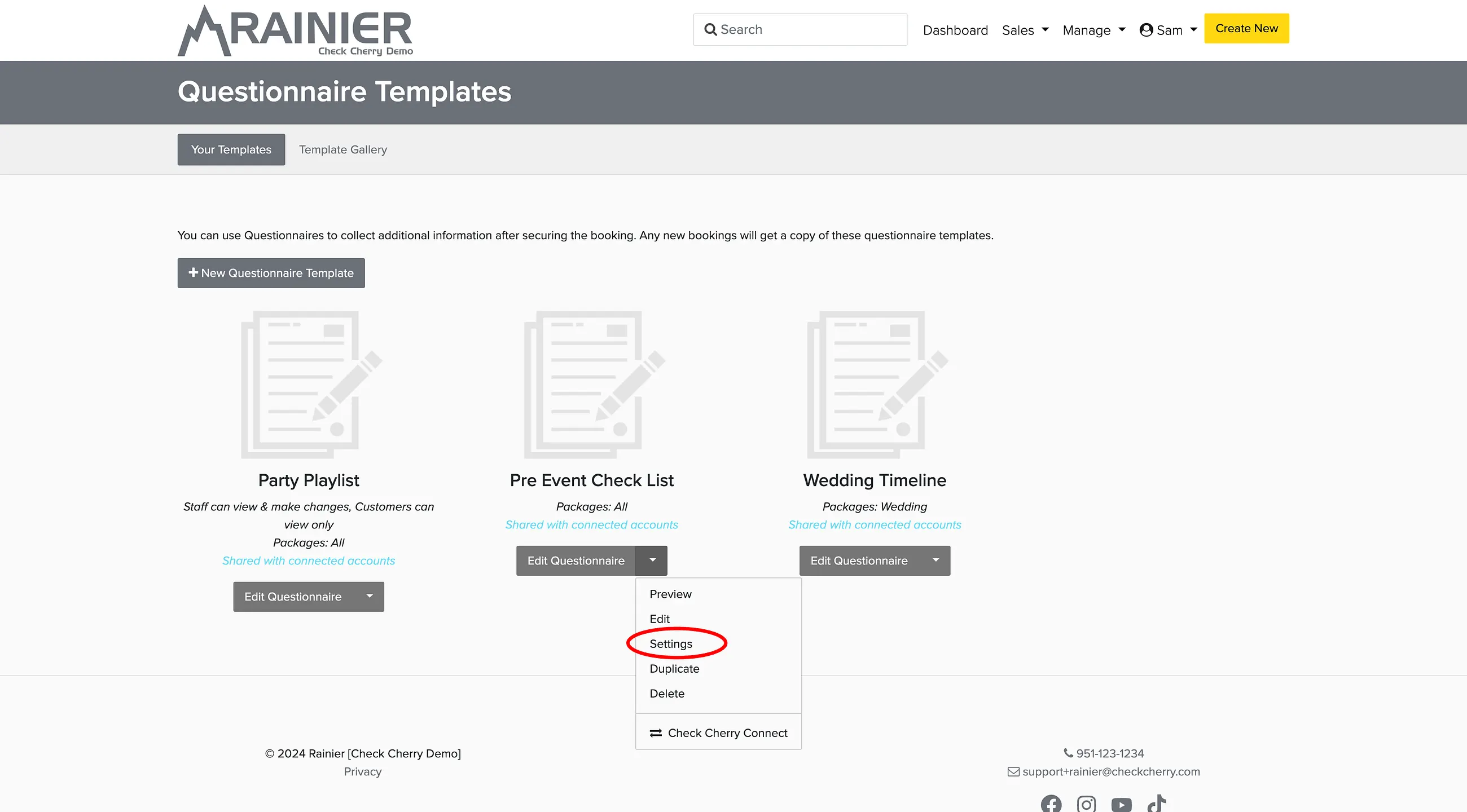
Each template has its own default permissions. To open them, click the down arrow next to Edit Questionnaire and choose Settings.
Visibility and editing settings
These default permissions decide how much of the questionnaire your team is responsible for versus your client. For example, you might let clients fill out their own event timeline, while keeping a sensitive internal questionnaire staff-only. They are applied whenever a copy of the template is added to a new booking, and you can override them later on an individual booking.
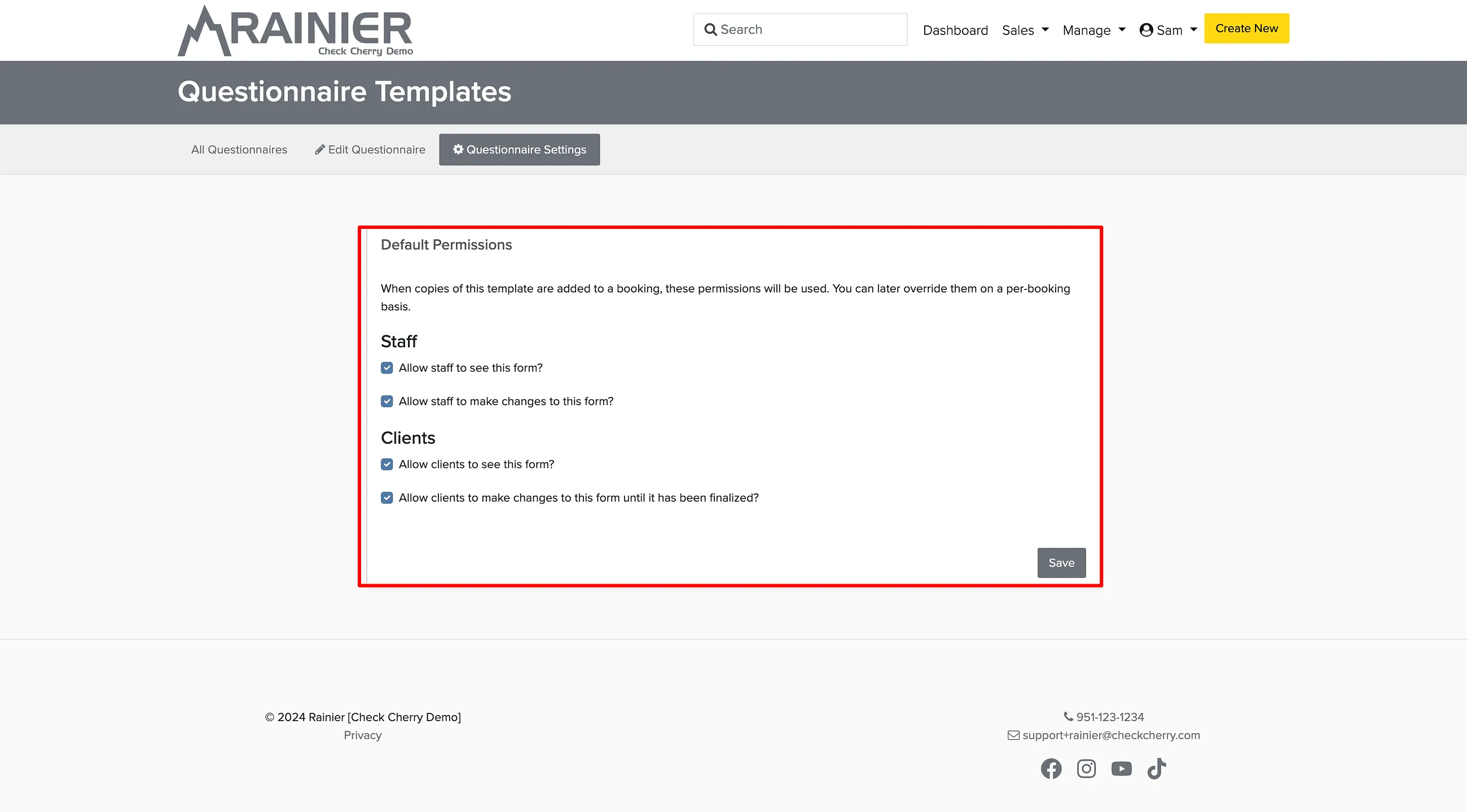
- Allow staff to see this form? Staff can view this questionnaire on bookings.
- Allow staff to fill out this form? Staff can fill in the answers themselves. This appears when staff can see the form.
- Allow clients to see this form? Clients can open the questionnaire in their client portal.
- Allow clients to fill out this form until it has been finalized? Clients can fill in and update their answers up until the questionnaire is finalized. After it is finalized, they can no longer change it.
There is also a Show this questionnaire before or after the booking? option. Use it to set the questionnaire up as a pre-event questionnaire or a post-event survey.
Template Management
Other options available from the dropdown menu:
- Preview: See how the questionnaire looks to clients
- Edit: Modify questions and content
- Settings: Open the default permissions described above
- Duplicate: Create a copy to use as a starting point
- Delete: Permanently remove the template
Applying template changes to existing bookings
Because template edits only affect new bookings, use Sync when you want to push changes out to bookings you have already taken. Open the template's dropdown menu and choose Sync. Check Cherry shows you what is out of date and lets you pick what to apply:
- Add the questionnaire to bookings that now match its packages
- Remove it from bookings that no longer match
- Update permissions to the template's current settings
- Update the questions to the latest version
Bookings with completed questionnaires are left alone, so you will not overwrite answers a client has already submitted.
Changing Settings on Individual Bookings
You can override the template permissions for a single booking. Open the booking, go to the Questionnaires tab, click the down arrow next to the questionnaire, and choose Settings. Your changes apply to that booking only.
Editing Questions on a Booking
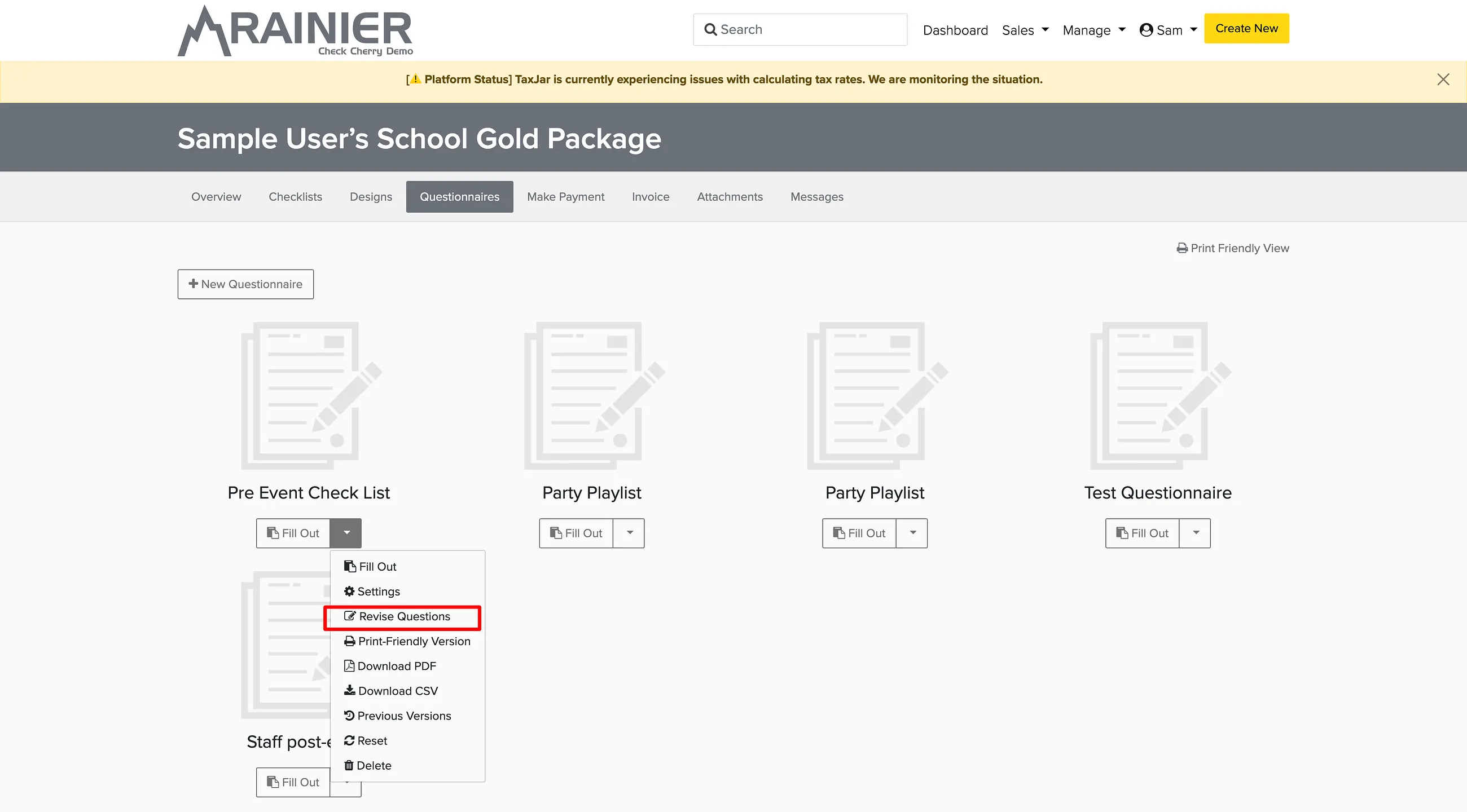
To change the actual questions on a specific booking, go to the Questionnaires tab, click the down arrow next to Fill Out, and choose Revise Questions. Changes only apply to that booking.