Clients see questionnaire tabs in the order you set them. You can reorder tabs, duplicate them, or remove ones you don't need using the Additional Tab Settings menu.
How to reorder tabs
Open the questionnaire template you want to edit.
Click Additional Tab Settings in the upper right corner of any tab.
Choose Move Tab (Left or Right) to reorder, or drag tabs directly into the order you want.
Save your changes.
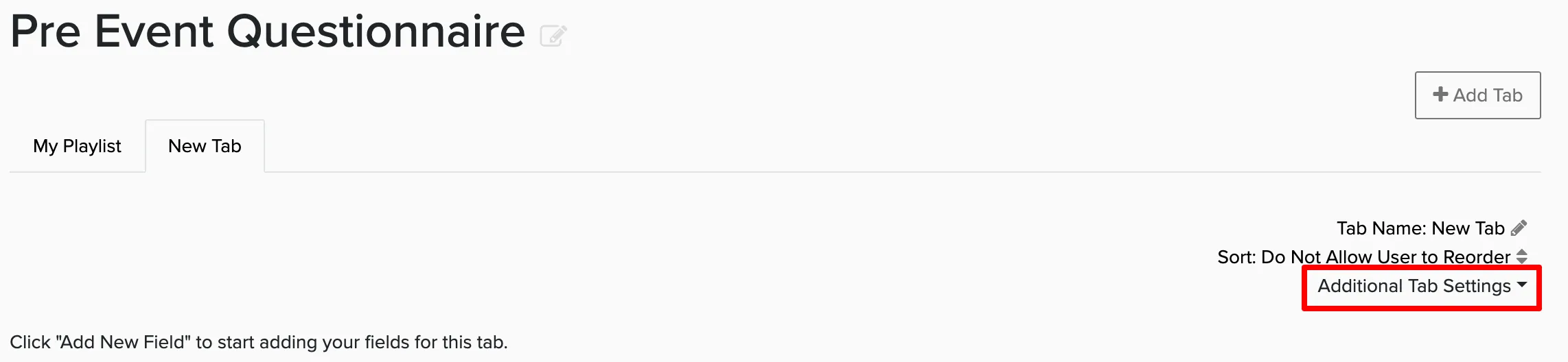
Other tab options
The Additional Tab Settings menu also lets you:
- Duplicate an existing tab to save time when creating similar sections
- Remove tabs you no longer need
Put your most important tabs first. Clients often fill out the first few tabs completely but may skip later ones if the questionnaire feels too long.