Blockout dates mark times when you're unavailable for bookings — vacations, personal commitments, holidays, or any time you need off. When a date is blocked, clients can't book it through your online booking page.
How to Add a Blockout Date
Sales → Calendar
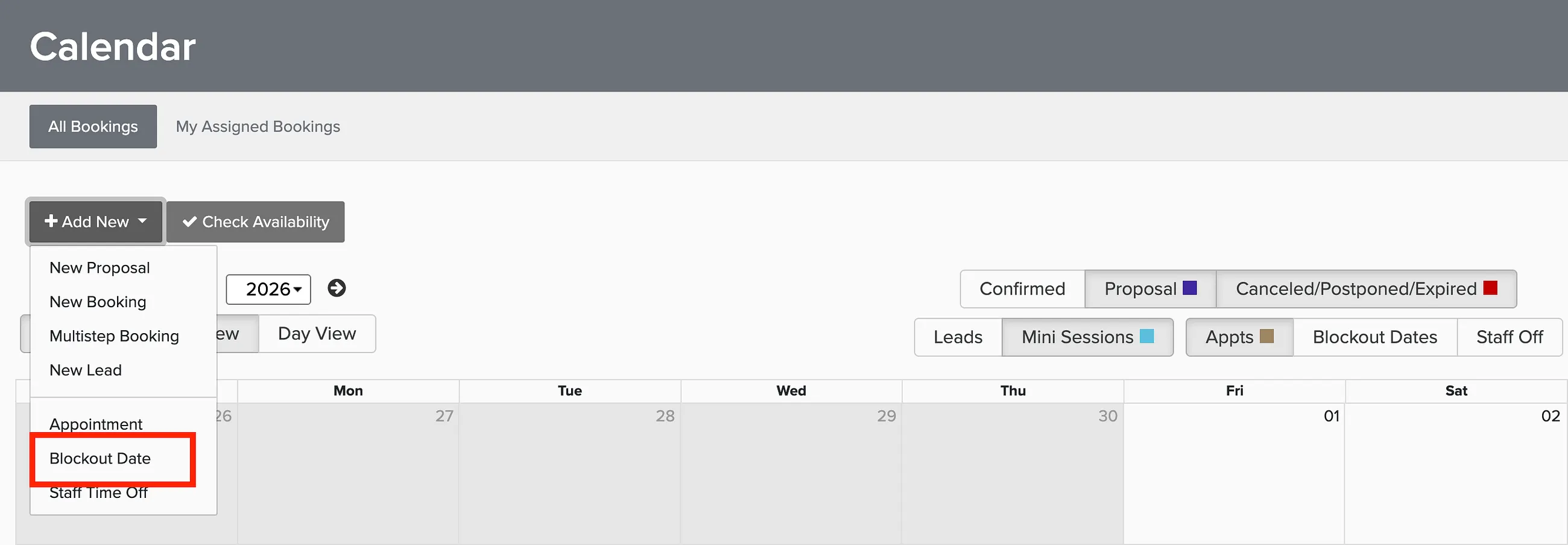
Go to Sales - Calendar
Click Add New.
Select Blockout Date.
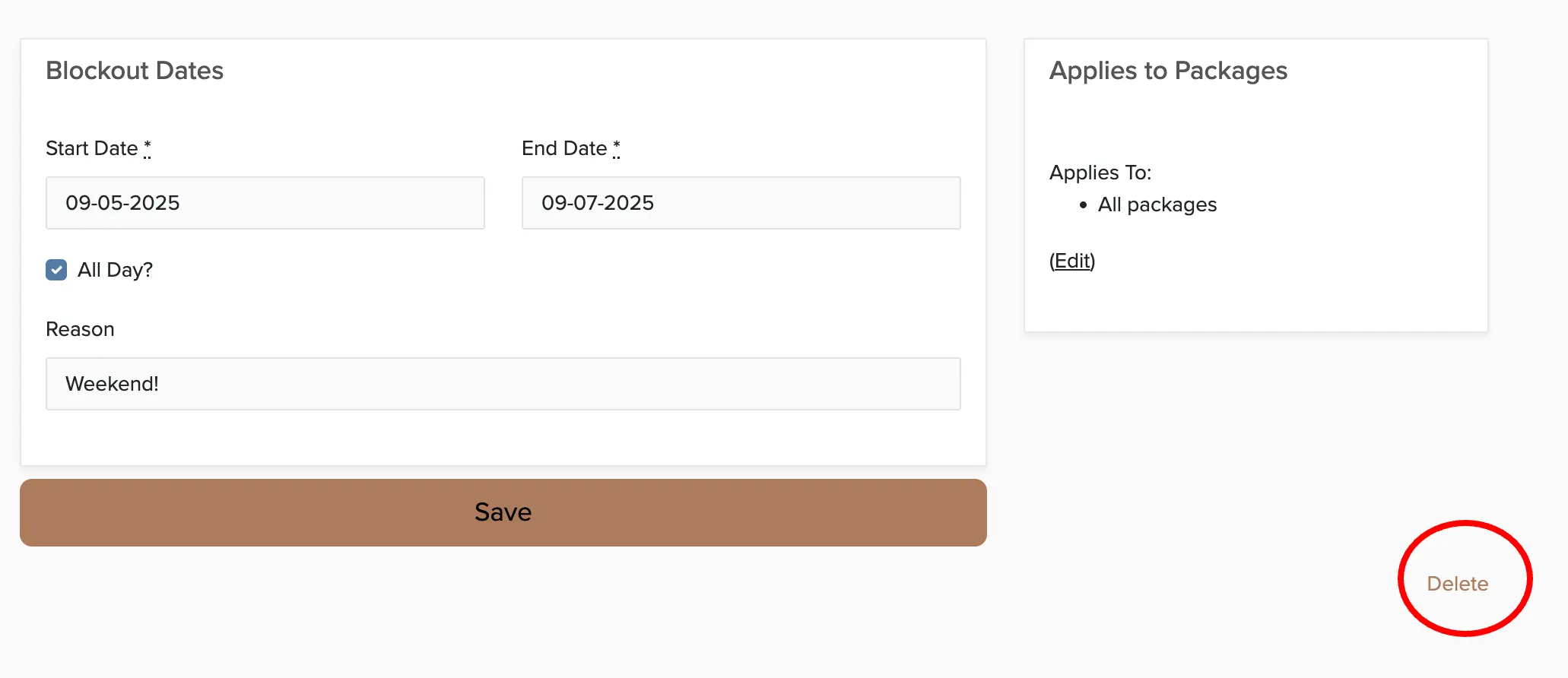
Enter the start and end time, or check the box to block the entire day.
Type in a reason (this will show on your calendar for reference).
Select which packages will be unavailable on this date.
Click Save.
How to Change or Delete a Blockout Date
Go to Sales → Calendar and click on the blockout date you want to modify. Change the dates or times and click Save, or click Delete in the lower right corner to remove it.
Customizing Unavailable Messages
When clients try to book a blocked date, they see an unavailable message. You can write custom responses for different situations:
Go to Manage → Booking Engine.
Click the Unavailable Notices tab.
Select the service you want to write an unavailability notice for.
Write your custom message for when that service is unavailable.
Click Save at the bottom of the page.
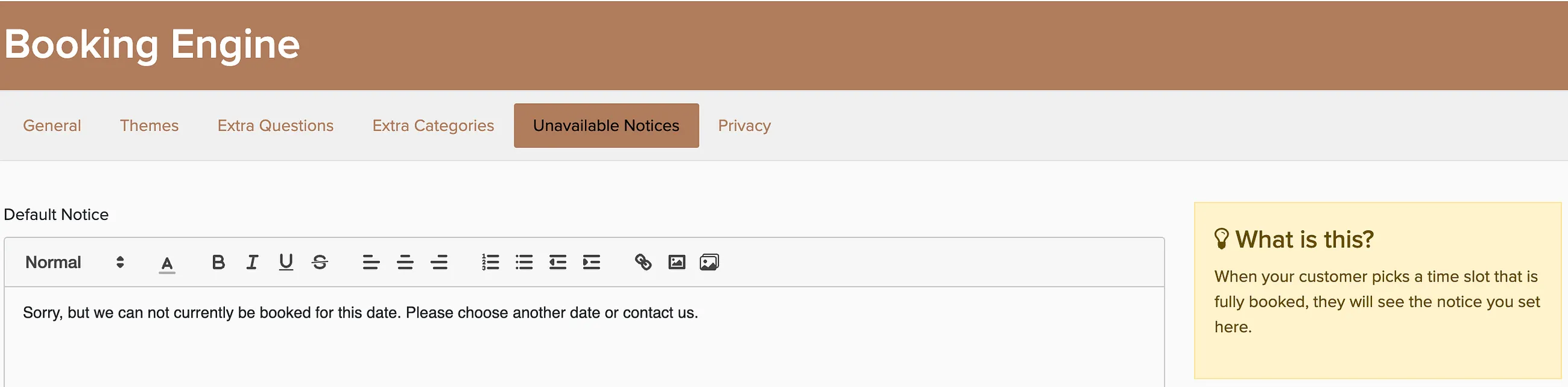
A good unavailable message sets expectations: "We're not available on this date, but we'd love to help you find another date that works. Contact us!"
What About Existing Bookings?
If you create a blockout for a date and time that already has a booking, the blockout date will not cancel the existing booking. Blockout dates only prevent new bookings from being made.