When clients pick a date or time outside your hours, on a blockout date, or when you're fully booked, they see an unavailable message instead of your normal booking flow. This is your chance to set expectations and keep the conversation going.
Manage → Booking Engine → Unavailable Notices
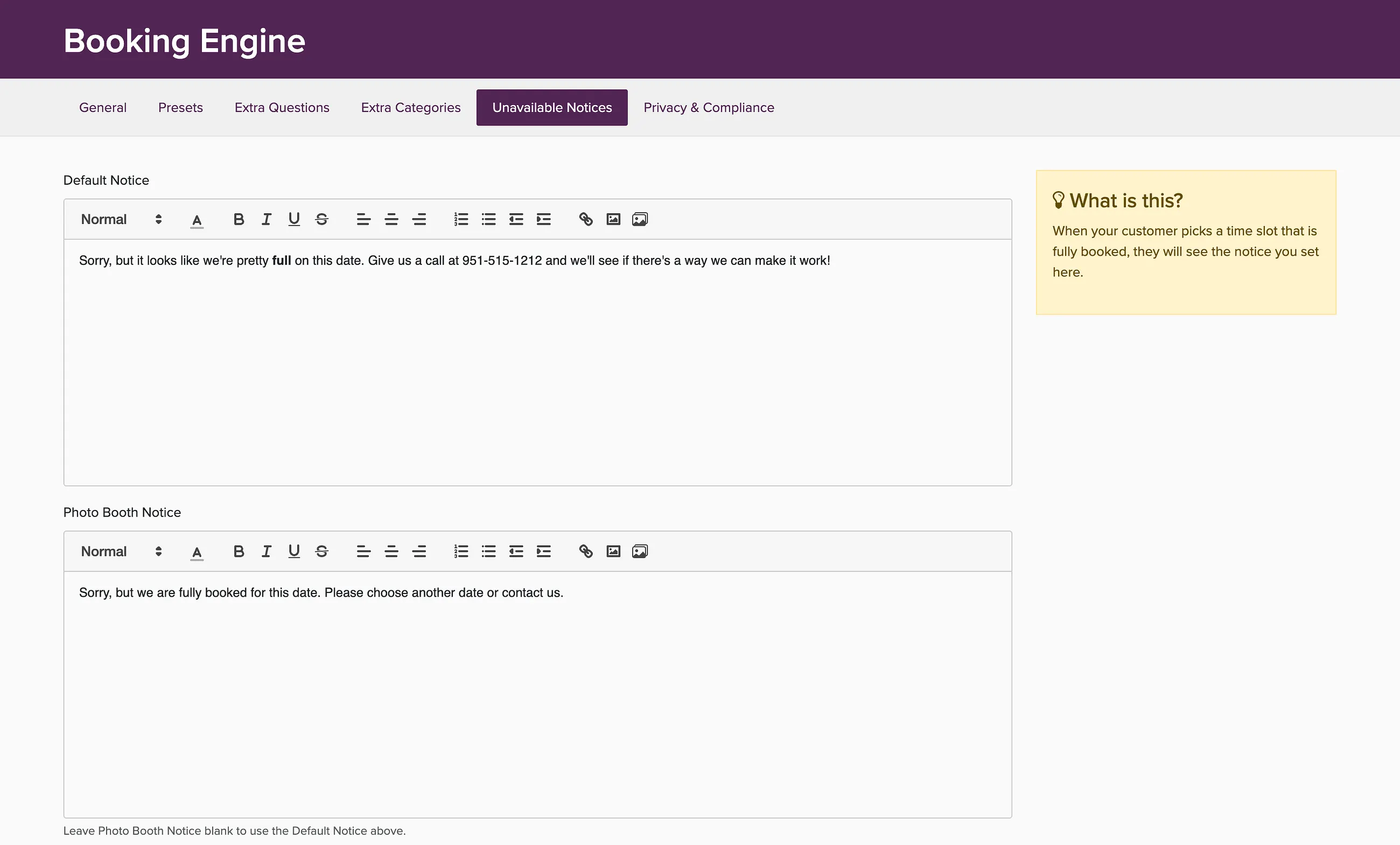
Go to Unavailable Notices.
Edit the Default Notice.
Each service has its own notice below it. Fill one in if that service needs different wording, or leave it blank to use the default.
Click Save.
Even when unavailable, clients can still submit lead forms to reach you. Mention this in your message so they know they can still get in touch.
What to include
A good unavailable message tells clients when you'll be back and gives them an alternative way to connect. Most businesses include:
- When you'll be available again ('back Monday' or 'available after 9am')
- How to reach you in the meantime ('send a message' or your phone number)
- Your typical response time ('I'll get back to you within 24 hours')
Keep it friendly and reassuring. Clients who see an unavailable message are interested enough to visit your booking page so don't lose them with a generic 'we're closed' message.