Time off is how your staff tell you the dates they cannot work. Once it is on the calendar, those dates show up while you are assigning people rather than after, which is the whole point of collecting it.
Deciding whether requests need approval
This one setting changes the whole flow. With approval on, staff send a request and wait on you, and their own page calls the button Request Time Off. With approval off, they add the dates themselves and it takes effect immediately, and the button reads Add Blockout Dates. Most businesses with a small, trusted roster leave approval off and only turn it on once the team is big enough that two people booking the same weekend off becomes a problem.
How staff request time off
Staff find this under Set Availability in the Quick Links on their dashboard, or Set Booking Availability in the menu under their name. The page has a My Time Off panel above their weekly availability.
Their own list shows the dates, the reason and a status of Awaiting Review, Approved or Rejected, and they can remove an entry themselves. Past time off is hidden by default behind a Show past time off link, so the list stays about what is still ahead.
Approving requests
The queue lists who asked, when they want off and why. Approve and Reject both open a box where you can add a note back to them, which is worth using on a rejection so the answer does not arrive as a bare no. This page used to live on the Sales menu and is now part of the Staffing area, alongside the rest of your staffing queues. Admins can also approve and reject from the Check Cherry app for iOS and Android, which shows a count of what is pending.
What time off actually does
When you go to assign someone to a booking, anyone with time off across those dates is flagged in the staff picker with the reason and the dates they blocked out. It is a warning rather than a block, so you can still assign them if you have worked something out. Time off is per person. Dates your whole business is closed are business blockout dates instead.
The Staff Time Off report
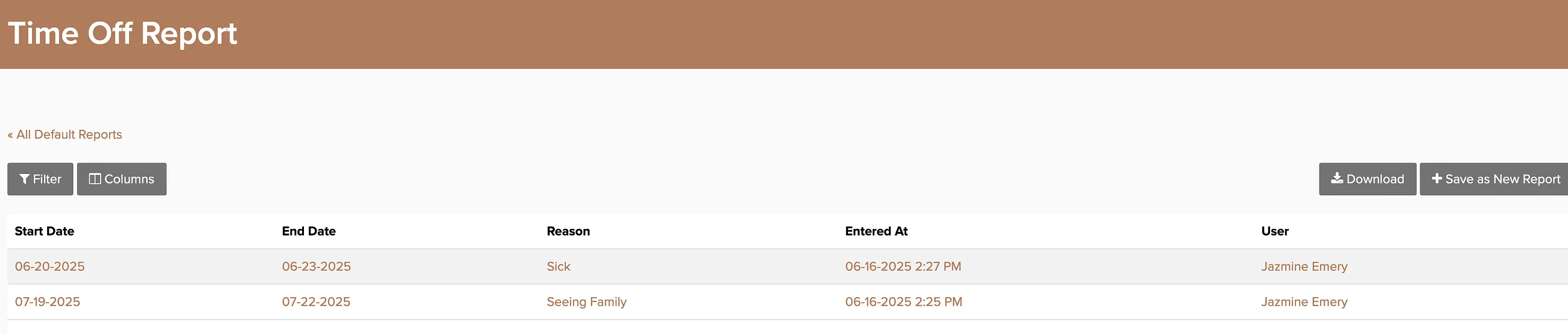
The report is the version you can take away: start, end, whether it is all day, the reason, who entered it and when. Filter and Columns change what you see and Download gives you a copy. Two related reports sit in the same menu, Staff Availability for everyone's weekly hours and Business Blockout Dates for the company calendar.