Staff use time off to tell you which days they can't work. Anyone who's off gets flagged when you go to assign them to a booking.
Time off is for one person. When your whole business is closed, use blockout dates instead. Running solo? Use blockout dates for your own days off too, since time off doesn't stop online bookings.
Choose whether time off needs approval
With approval on, staff send a request and it waits for you. With it off, their time off counts as soon as they add it. This setting is also under Sales → Staffing → Settings.
How staff add time off
Staff click Set Availability in the Quick Links on their dashboard, or Set Booking Availability in the menu under their name. Their time off is listed at the top, above their weekly hours.
Each entry has a status, like Awaiting Review or Approved. Staff can remove their own entries. Past time off stays hidden unless they click Show past time off.
Repeating time off
Got a class every Thursday night? Check Repeats? on the same form. The options are the same as repeating blockout dates.
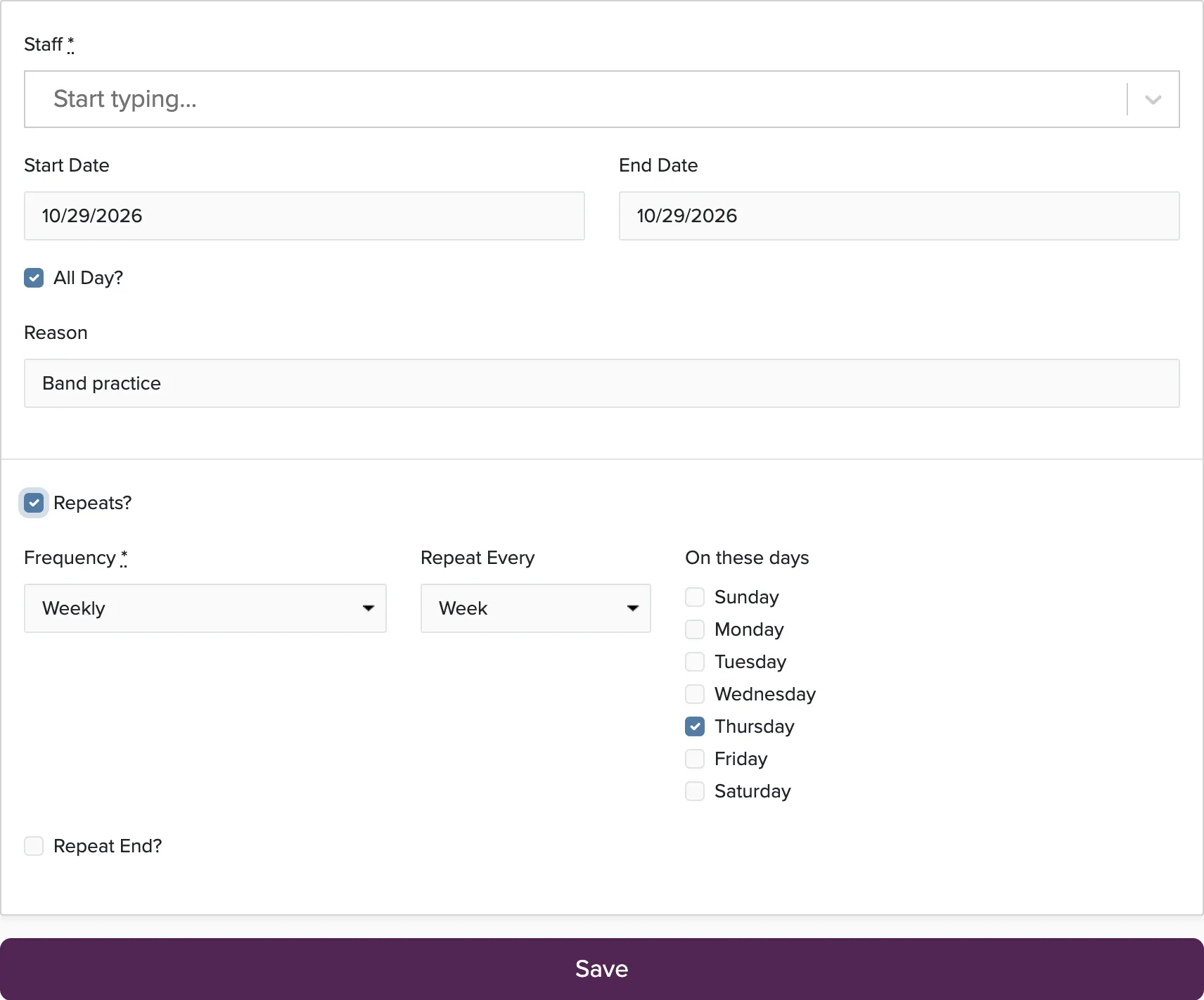
If someone never works Tuesdays, change their weekly hours instead. There's a link on the form.
Repeating time off is listed once, under Repeating. Click it to see all its dates.
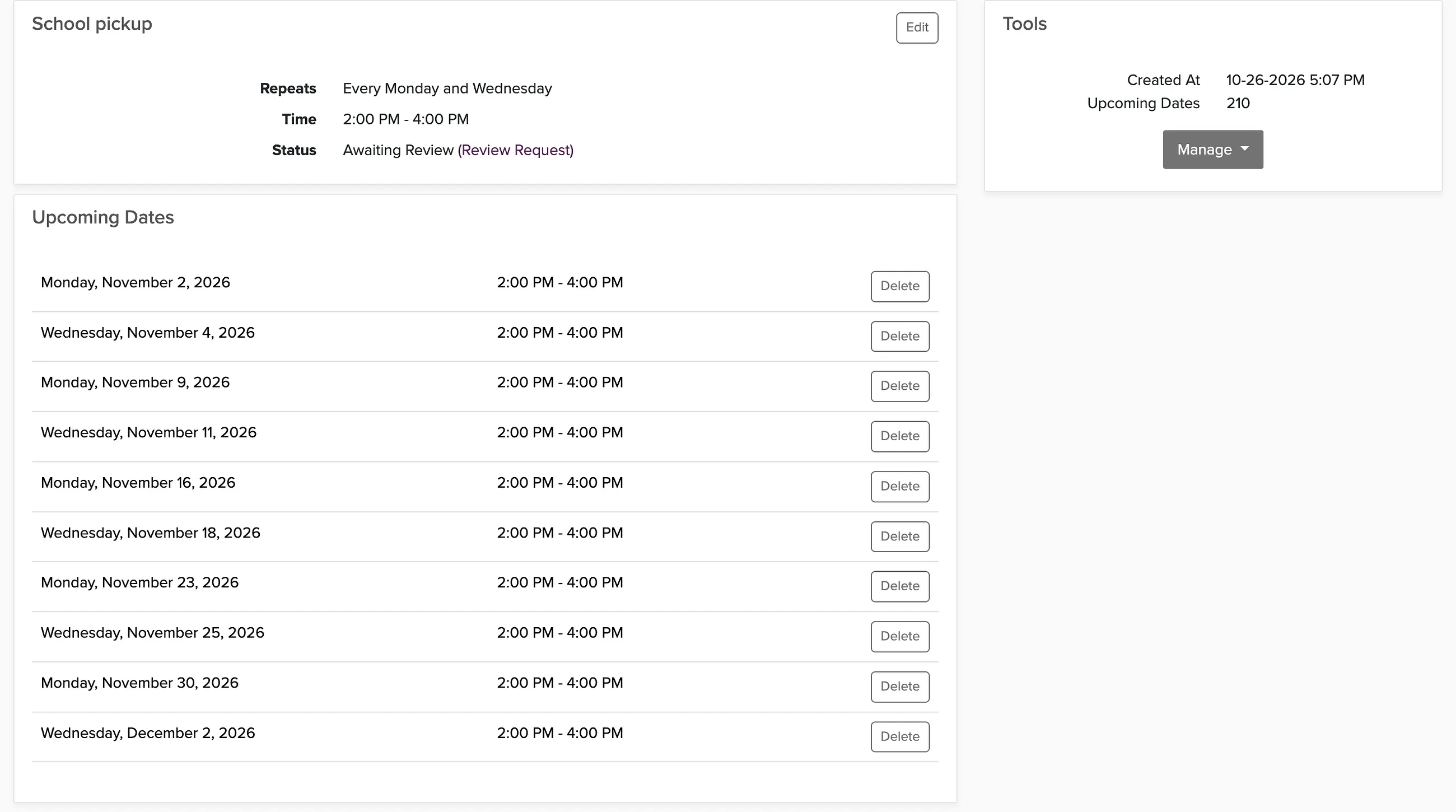
Staff can delete repeating time off any time. They can only edit it when approval is off. When they delete a date, they choose whether to remove just that one, that one and everything after it, or the whole series.
Add time off for a staff member
On the Calendar, click Add New and choose Staff Time Off (it's under Create New in the top menu too). Pick the staff member and fill out the form, including Repeats if you need it.
You can also open a staff member's profile, choose Set Availability, and click Add Time Off.
Time off you add is approved right away.
Approve requests
You'll only see this tab when approval is on. Click Approve or Reject on a request, and add a note for the staff member if you like.
Repeating requests show up once, and your answer applies to every date.

The Check Cherry app for iOS and Android can approve and reject too.
What time off does
When you assign staff to a booking, anyone off that day is flagged in the staff list. You can still assign them.
Requests awaiting review don't get flagged until you approve them.
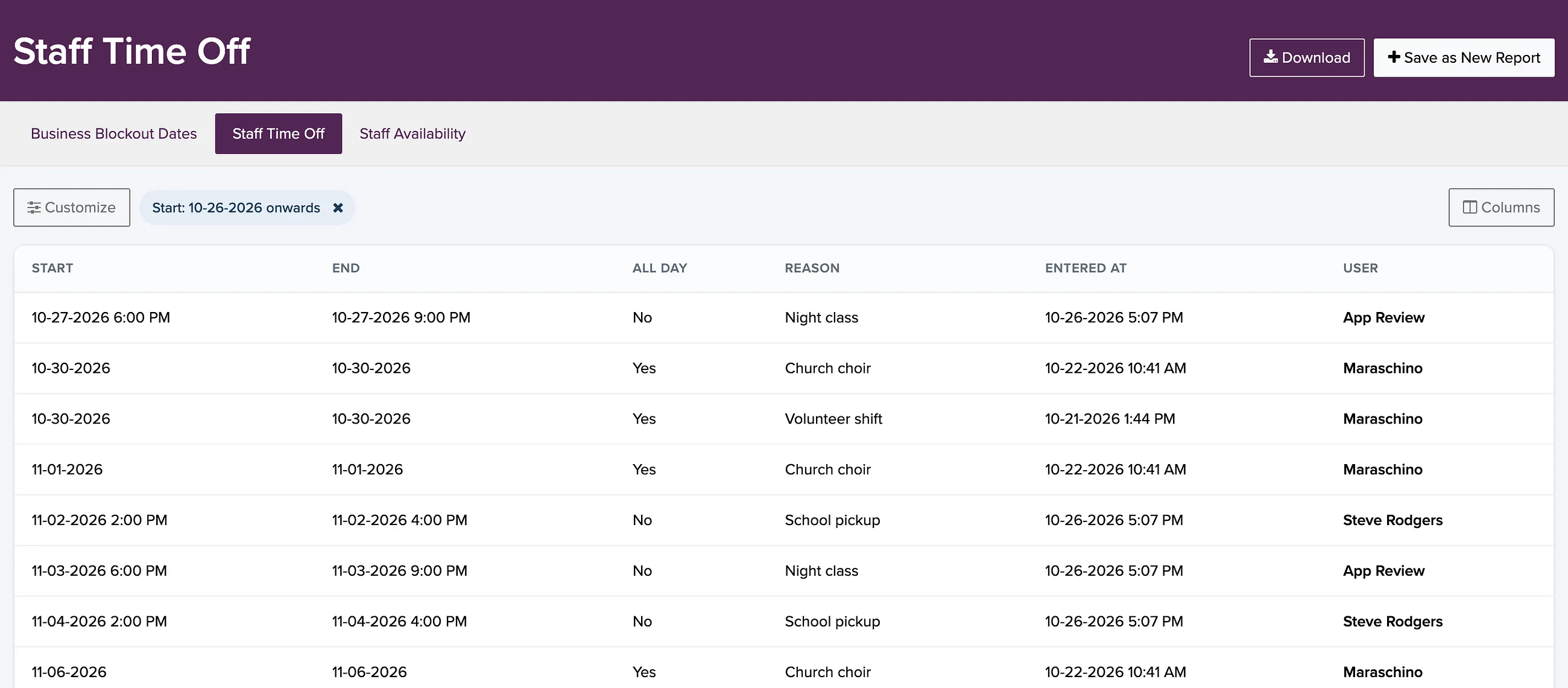
The Staff Time Off report
This report lists everyone's time off. Filter it with Customize, or click Download for a spreadsheet.
Common questions
Can time off repeat every year?
No. Add yearly time off as single dates.
What happens to repeating time off when I archive a staff member?
Their upcoming dates are removed, and come back if you unarchive them.