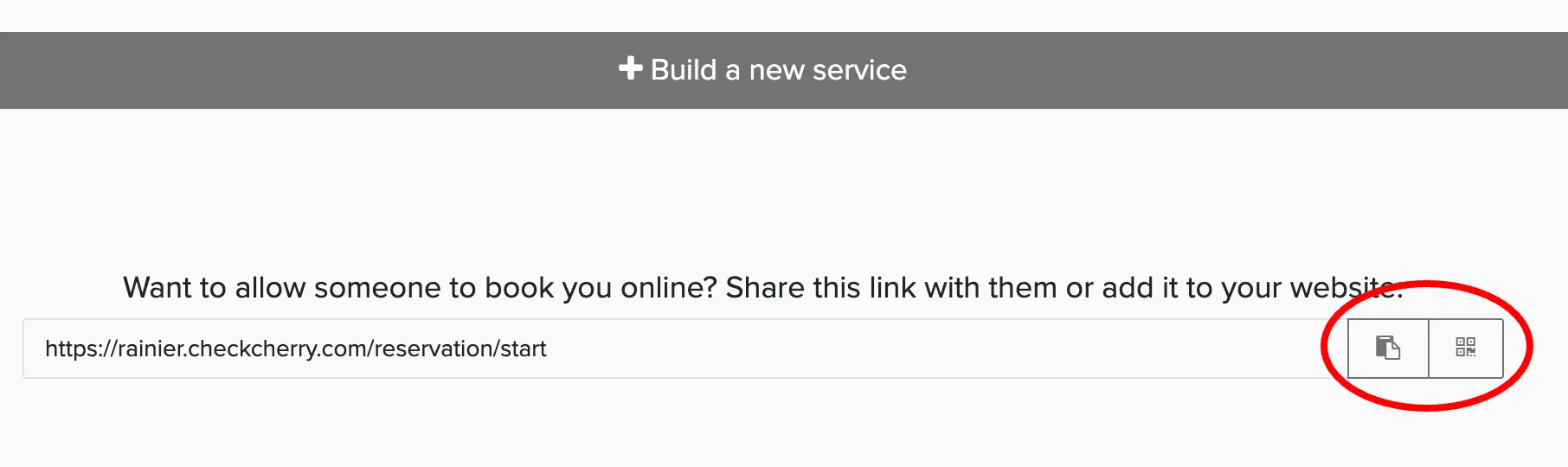
A client who only wants a photo booth shouldn't have to scroll past your DJ and bartending services to find it. Each service has its own shareable link that takes clients straight to online booking for just that service. You can also link to a single package group or an individual package when you want to be even more specific.
Getting a Service link
A service link opens online booking showing every package in that service, which makes it a good fit for your website menu, social bio, or a general reply to an inquiry.
Link to public and private packages
Every service gives you separate links for public and private packages.
- Public packages only: shows only the packages marked as public
- Allow access to private packages: includes both public and private packages
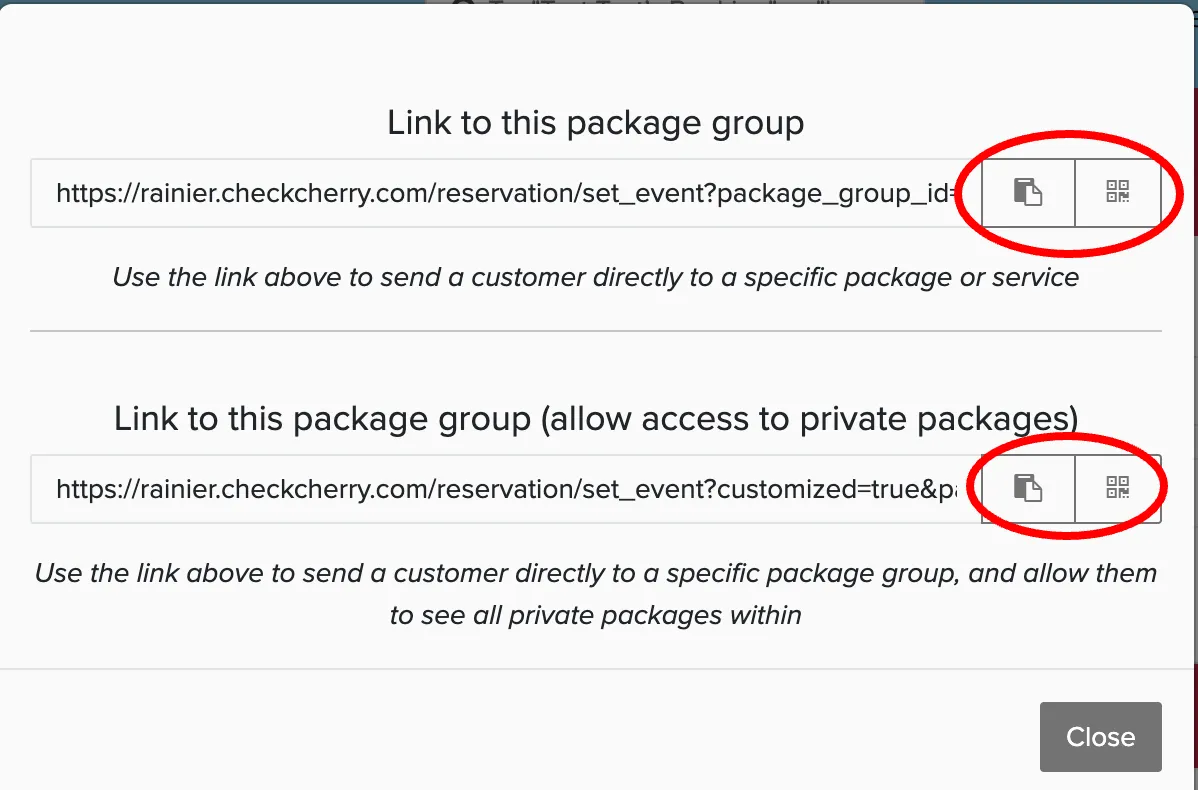
Getting a Package Group link
If a service has several package groups, such as wedding packages and corporate packages, a group link sends clients to just that group. It works well when you run different ads or web pages for different types of events and want each one to land on the right options.

Getting an individual Package link
An individual package link is the most direct option. It's useful when you're promoting one specific offer, like a holiday special, or when a client has already told you which package they want and you just need them to check out.
Using your links
Once you've copied a link, it works anywhere you can paste a URL. Service, package group, and package links all behave the same way: the client lands in online booking with the right options already in front of them, then picks a date, signs the contract, and pays.
Linking to your entire online booking
Sometimes you don't know what a client is looking for, or you offer a lot of services and want them to browse. In that case, use your main online booking link instead of a service link. It opens online booking with all of your services, and clients choose where to start. This works well for a homepage button or a general link in your bio, while the more specific service, group, and package links work better for ads, landing pages, and replies where you already know what the client wants.
Most businesses use both: one main link on the homepage, and specific links wherever the audience is already narrowed down, like a wedding page or a holiday promotion.